
OpenOCD基础篇(二)——烧录和调试
OpenOCD基础篇(二)——调试和烧录
前言:
本篇文章介绍使用OpenOCD烧录和调试。
1 连接芯片
OpenOCD需要配置cfg文件才能连接芯片,cfg需要根据使用环境进行配置,以stm32f103ZET6通过J-Link,按照SWD接线方式连接芯片,以下给出 jlink_swd_stm32f103_connect.cfg 配置。
1 | # jlink-swd-f103.cfg |
执行以下指令让OpenOCD根据cfg的配置连接芯片。连接只需要通过USB连接J-Link,J-Link通过SWD接线方式连接芯片,linux环境只需要安装OpenOCD,不需要安装额外的驱动程序。
1 | openocd -f jlink_swd_stm32f103_connect.cfg |
连接成功后显示如下。
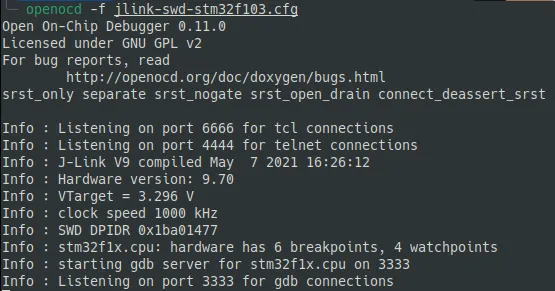
2 烧录
OpenOCD连接芯片成功后,保持该终端不要关闭,重新打开终端后执行以下指令烧录固件,可以烧录bin、hex、elf三种文件。以下默认固件文件和脚本在同一目录下。
- 烧录elf文件
1 | telnet localhost 4444 |
- 烧录hex文件
1 | telnet localhost 4444 |
- 烧录bin文件
1 | telnet localhost 4444 |
bin文件不含地址信息,因此必须指定地址,STM32的Flash起始地址为0x08000000。
打开两个终端手动操作比较麻烦,也可以一条指令实现烧录,指令中添加了halt超时和复位延迟动作,否则升级容易失败。
- 烧录elf文件
1 | openocd -f jlink_swd_stm32f103_connect.cfg -c "reset_config srst_only; init; halt 3000; program ordmcu.elf verify reset exit" |
- 烧录hex文件
1 | openocd -f jlink_swd_stm32f103_connect.cfg -c "reset_config srst_only; init; halt 3000; program ordmcu.hex verify reset exit" |
- 烧录bin文件
1 | openocd -f jlink_swd_stm32f103_connect.cfg -c "reset_config srst_only; init; halt 3000; program ordmcu.bin 0x08000000 verify reset exit" |
记忆指令太复杂,可以编写openocd脚本,建议调用脚本完成烧录操作。
以下为openocd的脚本文件,实现了stm32f103xe单片机的擦除、烧录、复位动作,内容如下。
1 | # ============================================ |
以bin文件烧录为例,执行以下指令进行烧录。
1 | openocd -f jlink_swd_stm32f103_program.cfg -c "dump_flash \"ordmcu.bin\"" |
3 调试
执行以下指令连接芯片。
1 | openocd -f jlink_swd_stm32f103_connect.cfg |
连接的终端不要关闭,另外再打开一个终端,执行以下指令使用GDB进入Debug。
1 | arm-none-eabi-gdb ordmcu.elf # 注意必须用elf文件,其包含调试信息。 |
注意,从Ubuntu22.04开始,gdb-arm-none-eabi包已经被gdb-multiarch替代,所以Ubuntu22以上的系统用以下指令调用gdb。
1 | gdb-multiarch ordmcu.elf # 注意必须用elf文件,其包含调试信息。 |
如果遇到jlink烧录后不能有效复位从Flash启动固件的问题,可以使用以下指令强制烧录后重启,以bin文件举例,其他文件类似。
1 | openocd -f interface/jlink.cfg -c "transport select swd" -c "adapter speed 1000" -f target/stm32f1x.cfg -c "init; reset halt; flash erase_sector 0 0 last; program ordmcu.bin 0x08000000 verify; reset run; sleep 1500; shutdown" |
设置断点并运行,查看变量值。
1 | target extended-remote localhost:3333 |
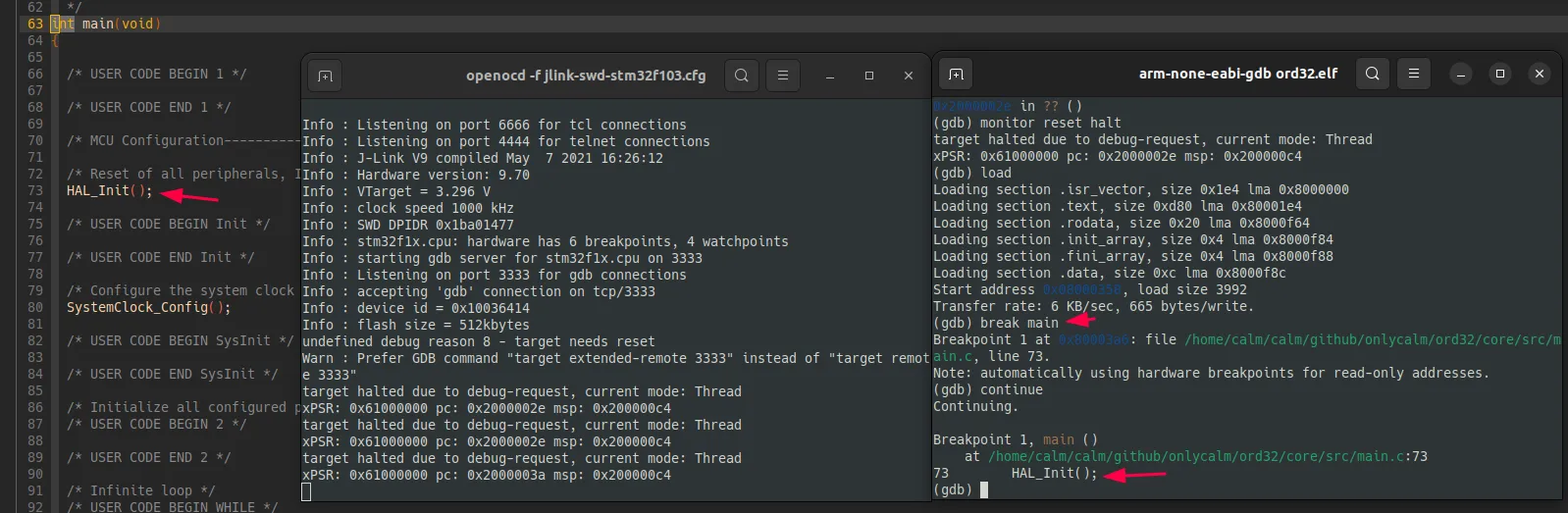
修改代码重新编译后,不用断开GDB,执行以下代码再次复位并将固件写入Flash后运行即可,运行的即为重新编译的固件。
1 | monitor reset halt # 复位并暂停芯片 |
gdb每次手动输入指令太麻烦了,可以将指令写入到 .gdbinit 文件中,gdb启动时会自动执行该文件中的指令。执行以下指令加载.gdbinit文件并启动gdb。
1 | gdb-multiarch -x .gdbinit ordmcu.elf |
如果已经进入gdb,想要重新执行.gdbinit文件,可以在gdb里执行以下指令。
1 | source .gdbinit |
前面介绍了两种通过OpenOCD烧录固件的方法,这里介绍了在GDB里烧录固件的方法。
1 | # 方法1:使用flash write_image |